
Getting started
Siderea takes an image of the night sky and runs it through processing steps, one at a time. Each step is kept in the history, so you can always go back.
Requirements
- A Mac with macOS 26 or later.
Your first image
- Click Open in the toolbar and choose a FITS, XISF, TIFF, PNG, JPEG or camera RAW file, or drag the file from Finder onto the canvas.
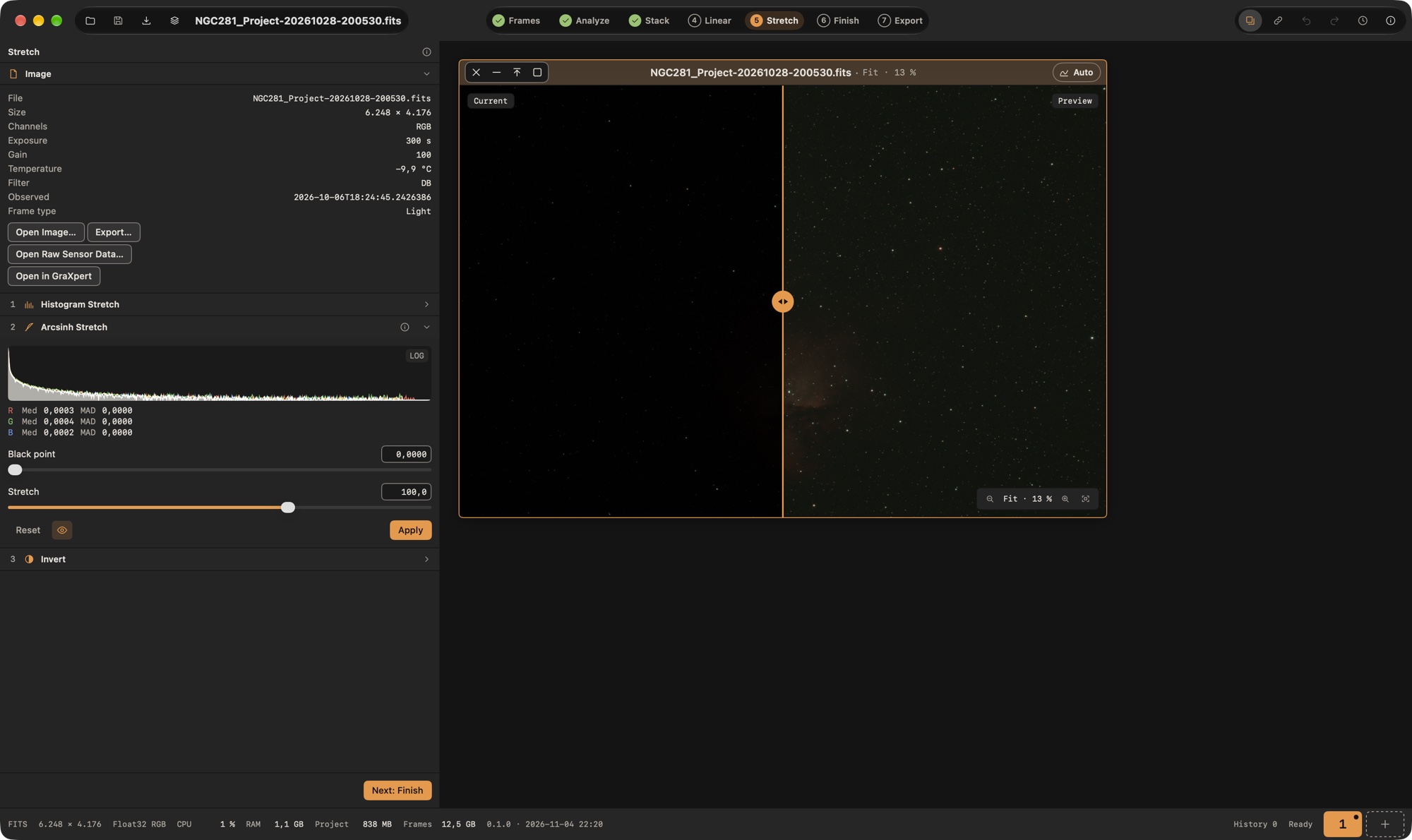
- Pick a step in the bar at the top, for example 5 Stretch.
- Open a module in the tool panel, adjust its parameters and click Apply.
- Click Undo to drop the last step, or look at all steps in the history strip (the History button in the toolbar).
- Open step 7 Export (or click Export in the toolbar), pick a preset such as Share or Archive or set format, size and stretch yourself, check the preview and click Export. The result is a JPEG, a 16-bit PNG or TIFF, or a 32-bit float TIFF, FITS or XISF file.
Your first stack
- Open a project (New Project… in the start dialog) and stay in step 1 Frames. Click Add Frames… or drop the folders with your lights, darks, flats and bias from Finder onto the window.
- The sidebar lists the sessions and the groups. Check in the table that every frame is in the right group and session, then click Next: Analyze.
- Siderea measures the lights and marks the ones with clouds, trailed stars or a bright sky, with the reason. Click a frame to see it large in the preview; press Space to play through the lights, or ← and → to step. Press X to leave the shown frame out of the stack, or click Exclude All Marked. The single keys work while the table or the preview image has the focus; the Frame menu has the same commands with shortcuts that work anywhere in the step (⌘[, ⌘], ⇧⌘P, ⌘E). Double-click a frame to open it as an image and look closer.
- Click Next: Stack, look at the checks and the masters, and click Start Stacking. The result is saved in the project and opens as an image; click Next: Linear and carry on with step 4.
See The Frames step, Analyze frames and Stacking for the details.
You can use Siderea with the keyboard and with VoiceOver; Accessibility lists all keyboard shortcuts and the current limits.
Why does my image look so dark?
Astro images are linear: almost all the signal sits in the darkest few percent of the range. Siderea stretches the preview for display only. The pixel data stays linear until you stretch it yourself, for example with Histogram Stretch.